Montblanc Spec Mismatch: Safe Checkout Checks
By Marcus Feld Editor-in-Chief
| Published | |
|---|---|
| Updated |
Introduction When you see a montblanc product on fashionreps, if the specs on the product page, variant options, QC photos, or cart summary don't match, don't rush to pay. "Specs" here includes style name, color, size, material description, accessories, SKU, and other info. This article only addresses one specific issue: when product info conflicts, how to save evidence, confirm your
Editor score 4.2 / 5
Introduction
When you see a montblanc product on fashionreps, if the specs on the product page, variant options, QC photos, or cart summary don't match, don't rush to pay. "Specs" here includes style name, color, size, material description, accessories, SKU, and other info. This article only addresses one specific issue: when product info conflicts, how to save evidence, confirm your actual selection, and decide whether to proceed with checkout or hold off.
This article does not cover determining authenticity, evaluating seller reputation, or predicting final logistics costs, nor does it treat the brand name on the page as proof of authenticity. After reading, you should be able to complete a verifiable variant check and leave enough page records before payment. Page, inventory, and cart status are time-sensitive; the following checks should be based on what you actually see when opening the page on October 21, 2026. 🔎
Defining the Scope of montblanc Product Spec Mismatch Checks
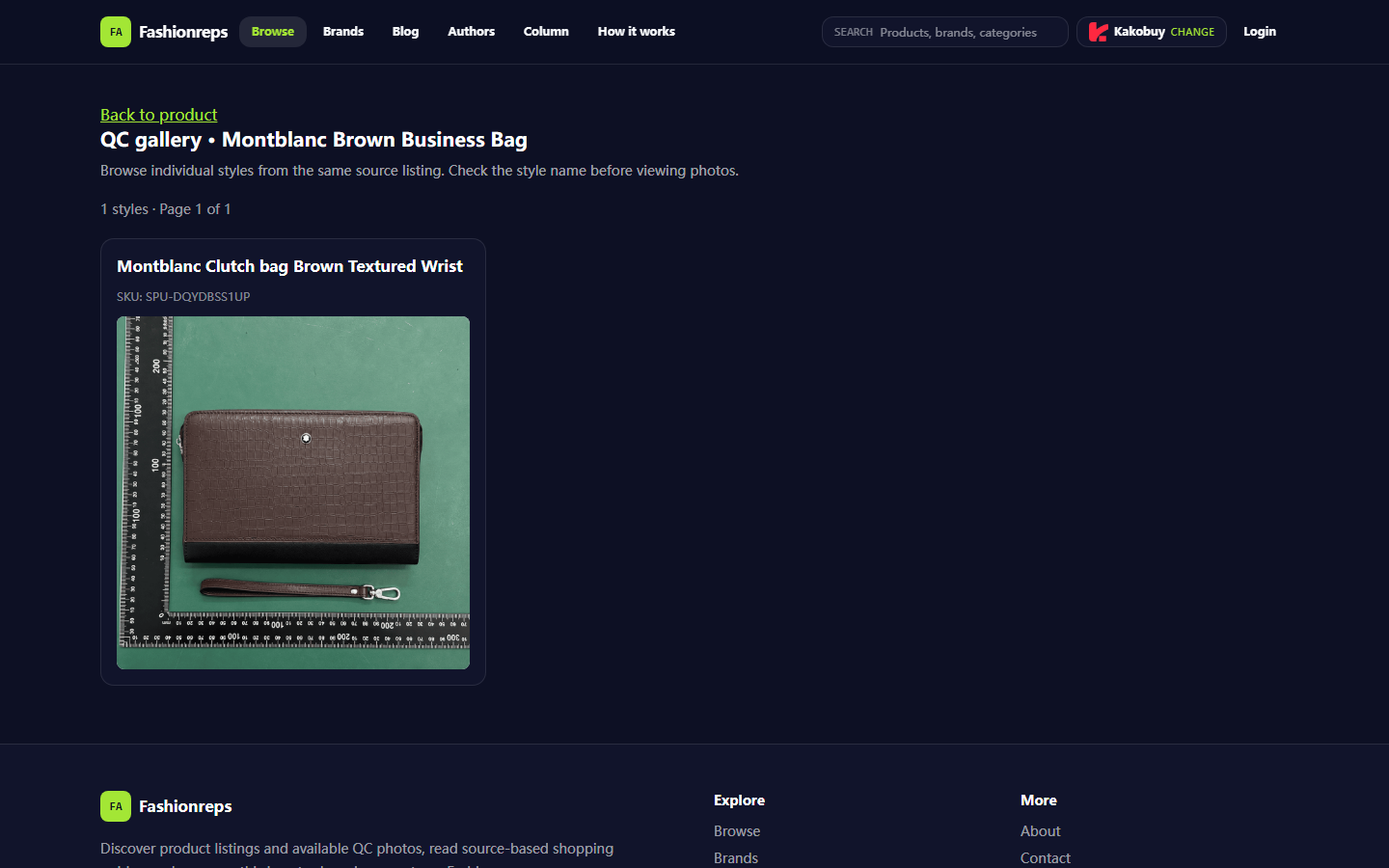
First, narrow the conflict down to one or more observable fields rather than vaguely recording "the page looks off." For example: the product title says Montblanc Brown Business Bag, but the selectable style shows Montblanc Clutch bag; the color name doesn't match the picture; the product page has size options, but the cart summary has no size; the page shows accessories, but the order summary doesn't reflect them.
I suggest writing down three questions first:
- Which page field conflicts with which other page field?
- What specific style, color, size, and accessories are you planning to buy?
- Under what conditions would you stop instead of continuing to attempt payment?
If you can't point to the specific conflicting fields, don't submit the order yet. A vague "it looks different" isn't enough to support a payment decision.
Saving Evidence from the fashionreps Product Page, Variant Options, and Order Summary
First, in the same browser session, open the product page, style or QC page, variant selection area, and cart or checkout summary in order. Record the page title, visible product name, SKU, current selections, page update time, or any visible inventory notices. If the platform's Buy button leads to your chosen shopping agent, also record the product name and options shown before and after the redirect; don't just save the post-redirect page.

The illustrated page is used to verify the correspondence between product name, QC page, and purchase entry. When saving screenshots, cover your account, shipping address, phone number, payment info, and full order number, but don't cover the product name, SKU, options, or error messages.
Mark the time after every refresh or re-selection. Don't mix screenshots from multiple actions into one piece of evidence, because you won't be able to tell which option produced the current summary.
Locating Differences by Style, Color, Size, and Accessories
Check in a fixed order to avoid focusing only on the most prominent product title:
- Style: Confirm that the style name you selected on the product page matches the name on the QC page or in the cart. The page may show multiple styles from the same source; you can't assume they're the same item just based on the images.
- Color: Record the exact wording and the color shown in the image. Brown, dark brown, and textured brown might be different options or just inconsistent descriptions, so always go by the selectable variant.
- Size: Confirm the unit of measurement, order of length/width/height, and whether multiple sizes exist. If the page only says "one size" but the images or description imply multiple sizes, treat it as incomplete information, not something to assume.
- Accessories: Separately note whether shoulder strap, packaging, tags, locks, or other accessories are part of the product, optional, or just shown in display images.
- SKU: Save the SKU along with your current selection. A SKU alone, without the corresponding style and color, doesn't prove you selected the correct variant.
Don't treat visual details in QC photos as facts about material, size, or accessories. Images can help spot differences, but they don't replace page text, selectable options, or seller confirmation.
Distinguishing Page Refresh Issues, Missing Options, and Real Info Conflicts
Page refresh issues typically show up as: options return after reloading, different devices show different things, selections briefly disappear, or browser cache prevents the summary from updating. First save the current evidence, then reload via the same entry point and check if the selection still exists. Don't rapidly click multiple options, because that makes results hard to reproduce.
Missing options means the page clearly offers the product but doesn't have enough color, size, or accessory options to make an accurate selection. In that case, don't substitute notes or default options for missing info unless official support explicitly confirms the meaning.
Real info conflicts are contradictions that persist after reloading, such as the product name, SKU, and cart summary consistently corresponding to different styles, or selecting one variant results in the summary showing another color. Treat this as an unresolved order information issue, not just a display difference.
Checking Whether the Cart or Checkout Page Keeps the Correct Variant
After adding the target variant to the cart, don't pay yet. Go through the cart summary and verify it retains:
- Product name and SKU
- Style or model
- Color
- Size or spec
- Accessories and quantity
- Unit price, currency, and any additional fees shown
If the cart only shows a generic product name and you can't confirm the specific variant, don't proceed just based on price or thumbnail. When going back to the product page to reselect, first screenshot the original cart summary, then compare after re-adding, to avoid overwriting the original evidence.
Also make sure the quantity hasn't increased due to duplicate clicks. If there are duplicate entries, don't guess which one to delete; first note the name, SKU, and options of each entry, then keep the one you can clearly identify.
Avoiding Repeated Order Submissions or Payments Until Confirmed
When specs don't match, the safest state is to keep an unpaid pending item. Don't "test" the system by repeatedly adding to cart, switching agents, or clicking submit multiple times. Repeated submissions can lead to duplicate orders, different variants, or payment records that are hard to distinguish.
Hold off on payment until the following are resolved:
- Key fields cannot be matched one-to-one with your page selections;
- Options still change or disappear after refresh;
- Cart summary is missing size, color, or SKU;
- Page and QC info correspond to different styles;
- Support staff haven't confirmed the exact variant you intend to buy;
- You can't determine whether you can modify or cancel the item after payment.
Even if the amount is small, don't use "pay first, deal with it later" as a substitute for verification. Correcting specs after payment may involve cancellation, refunds, warehouse processing, or agent rules, and the cost is usually higher than confirming before ordering. 💳
Organizing Page Info Needed When Contacting Official Support
When contacting the official support or help entry provided on the fashionreps page, keep your question brief and verifiable. It's recommended to provide:
- The full product name displayed on the product page;
- SKU or product number;
- The style, color, size, and accessories you intend to select;
- The specific differences between the page and the cart;
- The time the discrepancy occurred;
- Saved page screenshots with personal info covered.
Don't send passwords, full payment card numbers, passports, full shipping addresses, or uncovered order documents. Also, don't just ask "Is this real?" Instead, ask questions that can get a clear answer, such as "Does the SKU in my cart correspond to the style and color I selected on the page?"
If the issue involves an external shopping agent, payment, or warehouse processing, use the corresponding agent's support channel for confirmation. The product discovery, QC info, and purchase entry on the fashionreps page don't mean it directly handles orders, payments, or after-sales service. Different agents may have different option sync, cancellation, and refund rules, so always refer to the agent's own current page.
Proceeding or Holding Off Once Verification Conditions Are Met
Only consider proceeding when the page selection, cart summary, and support reply or other verifiable page evidence are consistent with each other. Do one final check before payment and save the final summary. If the support reply is vague, doesn't clearly reference a SKU, or key fields are still missing, hold off, keep the current evidence, and wait for further confirmation.
The conclusion of this verification should fall into three categories:
- Proceed: Style, color, size, accessories, and SKU all match, and the cart summary has no conflicts.
- Pending: Only non-critical descriptions differ but haven't been clearly explained; do not pay yet.
- Stop: Key variant mismatches, options can't be identified, the page keeps refreshing abnormally, or duplicate entries can't be distinguished.
The final decision should not be based on the product name, brand logo, or a single image. Clear variant records, cart verification, and no duplicate payments are the most important control points when dealing with spec conflicts. ✅