Nike Jersey Catalog: Website Spreadsheet vs Google Sheets
By Marcus Feld Editor-in-Chief
| Published | |
|---|---|
| Updated |
Nike Jersey Catalog: Website Spreadsheet vs Google Sheets If you're organizing Nike jersey candidates, the first issue isn't "which tool is more advanced," but mixing product discovery, information verification, and long-term record-keeping. A more reliable approach: use f
Editor score 4.2 / 5

If you're organizing Nike jersey candidates, the first issue isn't "which tool is more advanced," but mixing product discovery, information verification, and long-term record-keeping. A more reliable approach: use fashion-reps' website product catalog for discovering candidates, and Google Sheets for building verification records you can revisit.
This article solves a specific task: turning Nike jersey candidates you see on the website into a checklist you can review later. After reading, you should be able to do three things: find candidate products, record necessary fields, and re-verify links and specs before ordering.
This article does not apply to post-purchase warehouse inspection, actual logistics tracking, or after-sales handling. Product pages, prices, inventory, images, and link status may change, and should be re-verified against the actual page before publishing. The website page information in this article is based on current verification records as of October 8, 2026.
How to Discover Candidates by Category and Product Cards in the fashionreps Website Spreadsheet
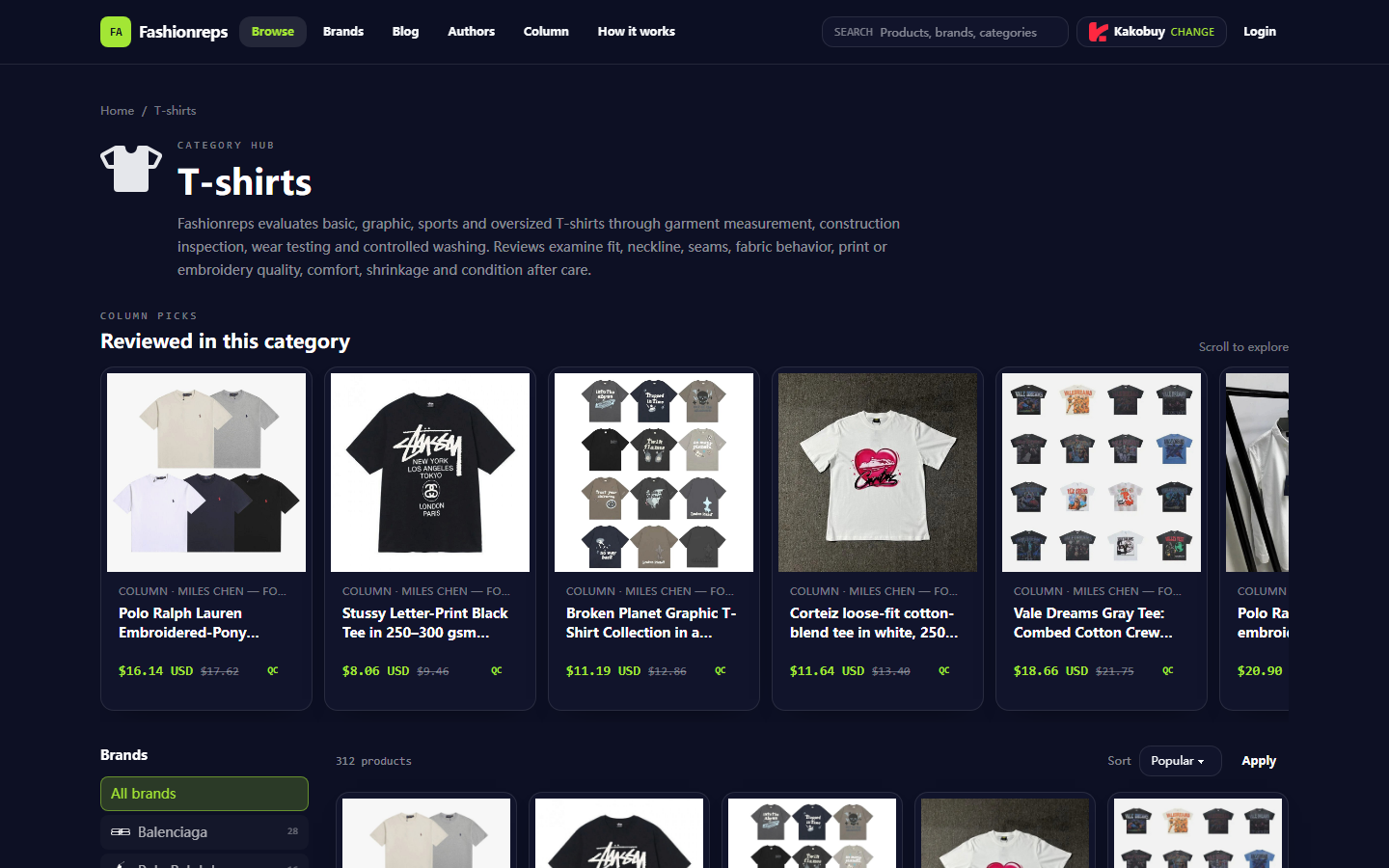
fashion-reps' catalog pages organize products by category, product cards, brand filters, price filters, and sorting functions. The currently visible page is the T-shirts category page, showing product cards, brand filters, price ranges, and sorting options; the brand list includes Nike, with 6 entries. This information helps you judge whether Nike candidates are worth further searching, but cannot directly prove that each item is a jersey.
Therefore, during the discovery phase, you should first use the catalog's navigation to narrow the scope, then open specific product cards to confirm names, images, sizes, colors, material descriptions, and source links. Do not record a card as a jersey just because its title contains Nike, and do not automatically interpret results in the T-shirts category as Nike jerseys.
Recommended browsing order:
- Enter a category page related to tops.
- Use the brand filter to locate Nike.
- Exclude styles that are clearly not jerseys based on product images and titles.
- Open candidate cards and check if there is enough visible information to support further recording.
- Copy the full URL of the candidate page to Google Sheets, not just the product title.
- Record the date you opened the page, to later judge whether the information is outdated.
The catalog is good for answering "which candidates are worth further viewing." It may not be good for answering "which one fits me best" or "this link will definitely have stock after ordering." These judgments require additional verification.
How Google Sheets Records Size, Color, Source Link, and Verification Date
The value of Google Sheets is turning a one-time browse into a trackable work record. It can save multiple candidates, allow filtering by status, and make it easy to update price, size, and link status when reopening pages.
You can start with these fields:
| Field | Recording Method | Purpose |
|---|---|---|
| Product Title | Based on visible page name | For review and deduplication |
| Brand | Nike | For later filtering |
| Category Judgment | Jersey, suspected jersey, not jersey, pending | Prevent treating category results as conclusions |
| Color | Based on colors listed on page | Compare different candidates |
| Size | Record visible size range on page | Re-check before ordering |
| Product Link | Save full page URL | For revisiting and handing to purchasing platform |
| Price | Record currency and page price | Avoid mixing different currencies |
| Image Status | Visible, missing, needs review | Determine if page needs revisiting |
| Verification Date | YYYY-MM-DD | Judge freshness of information |
| Status | Pending, comparable, not selected, link broken | Manage next actions |
| Notes | Record doubts and exclusion reasons | Avoid reviewing the same candidate repeatedly |
If the page doesn't provide certain information, writing "not shown" is more reliable than inferring. For example, if the page only shows sizes S-XXL, record that range; if there are no specific chest or length measurements, don't fill in standard size charts instead of page data.
Filtering in Google Sheets can help you view only rows where "category judgment is jersey" and "link status is accessible." When filtering by color, size, and price, keep original records and don't overwrite old values. When prices change, note the new verification date in the remarks.
Comparing Search and Filtering Steps for the Same Nike Jersey in Two Tools
The two tools handle tasks at different stages. The website catalog shortens the discovery path; Google Sheets preserves the judgment process.
| Task | Website Product Catalog | Google Sheets |
|---|---|---|
| Find Nike candidates | Browse cards via category and brand filters | Not for initial discovery, can save results |
| View images | Open product card to view page images | Save image status or source note, not a substitute for the original page |
| Check product title | View current page title | Record title and mark duplicates or changes |
| Filter by color and size | Depends on whether product page provides such info | Can filter by recorded fields |
| Compare multiple candidates | Good for quick browsing, may not preserve judgment process | Good for horizontal comparison, sorting, and adding notes |
| Long-term review | Page content may update or become invalid | Keeps verification date, status, and historical notes |
| Collaboration | Mainly shared page access | Can assign verifiers, add comments, and update status |
In practice, collect a few candidates on the catalog page first, then enter them into Google Sheets at once. Don't save every card you see; only candidates with clear page names, visible images, accessible links, and enough information for further verification deserve to be entered into the main sheet.
🧭 Discovery aims to reduce irrelevant results; organization aims to reduce repetitive work.
How to Item-by-Item Re-verify Product Images, Links, and Specs
Images only help you judge what the page shows; they cannot prove the actual item is exactly like the image. When recording images, distinguish between "current visible images on page" and "verified product details." The former is a page fact; the latter requires stronger evidence.
Recommended re-verification for each candidate:
- Does the image load properly and clearly show main design elements?
- Does the product title clearly state Nike and a specific style?
- Does the page provide color or colorway information?
- Does the page show a size range?
- Is there an accessible product link, not a blank card or tab?
- Is the price in a clear currency?
- Are there any redirects, error pages, or areas that fail to load?
- Does the page have enough information to mark it as "jersey," or only "pending"?
If images, titles, and specs contradict each other, set the status to "pending" and note the conflicts in the remarks. Do not fill in material, fit, team name, or authenticity just to make the table look complete.
The choice of purchasing platform should not be inferred directly from catalog cards. The fashion-reps page shows entry points for choosing a purchasing platform, but whether a specific product can be purchased by a certain agent, the final cost, and inventory need to be re-confirmed in the actual ordering process.
When to Browse Quickly vs. When to Organize Long-Term
Quick browsing is suitable when: you just want to know the number of Nike candidates, look for a certain color, or observe whether the page has products in the right direction. In such cases, the website catalog's category, brand, and price filters save steps.
Using Google Sheets for long-term organization is suitable when:
- You need to compare multiple sizes and colors.
- You plan to verify different product links in batches.
- You need to record price changes and broken links.
- You are collaborating with others on filtering candidates.
- You want to re-check all key fields before ordering.
- You want to keep reasons for excluding a candidate.
The most practical workflow is not choosing one or the other, but connecting the two tools into a small process: website catalog for discovery, Google Sheets for recording, and the original product page for final verification. 📋
Information Timeliness Boundaries Between Website Pages and Google Sheets
Website pages reflect the current state; Google Sheets is a record at a point in time. Prices, inventory, sizes, and image statuses in the sheet cannot be treated as permanent facts. Especially after a candidate has been saved for a while, when reopening the page, you should at least check whether the title, link, price, visible sizes, and images have changed.
You can add a simple re-check rule to the sheet:
- Recently verified and page normal: keep status as "comparable."
- Price or size changed: update current values and note old verification date in remarks.
- Page inaccessible: change to "link broken," do not delete the original record.
- Page information insufficient to confirm jersey attributes: change to "pending."
- Page clearly not the target product: change to "not selected," and record the reason.
This way, the sheet won't disguise old information as new, and won't lose original research records due to temporary link failures. ⏱️
If you plan to hand the link to a purchasing platform, record the pre-purchase status separately. A page opening doesn't mean stock exists, and a displayed price doesn't include agent service fees, international shipping, taxes, or destination country customs costs. Fees and compliance must be re-confirmed according to the actual purchase process and destination country requirements, not derived from reference prices in the product catalog.
Final Action: Build a Re-checkable Nike Jersey Candidate Sheet
You can start with this minimal workflow:
- Use the Nike filter in relevant fashion-reps categories to collect a few candidates.
- Open each page and confirm that title, images, colors, sizes, and links are visible.
- Enter candidates into Google Sheets and fill in the verification date.
- Separate "jersey" from "pending"; don't treat category or image impressions as facts.
- Filter by color, size, and status to keep rows truly worth comparing.
- Re-open the product link and check the current page status before deciding to order.
- Keep inaccessible or information-insufficient candidates in the sheet, but mark them as broken or pending.
This workflow doesn't save a fixed amount of money, but reduces repeated searches, mis-recorded links, and wrong decisions from outdated information. The risk it adds: Google Sheets may hold outdated information, and catalog cards cannot prove inventory, authenticity, or final costs. Therefore, it suits those who need to organize multiple candidates, compare repeatedly, or collaborate on verification; it does not suit those who treat the sheet as a guarantee of stock, quality proof, or final order evidence.
If you just want to browse quickly, use the website catalog directly; if you want to compare Nike jersey candidates long-term, use Google Sheets as a verification record, not a substitute for product facts.