Eric Emanuel Hoodie QC Link Mismatch: How to Troubleshoot
By Marcus Feld Editor-in-Chief
| Published | |
|---|---|
| Updated |
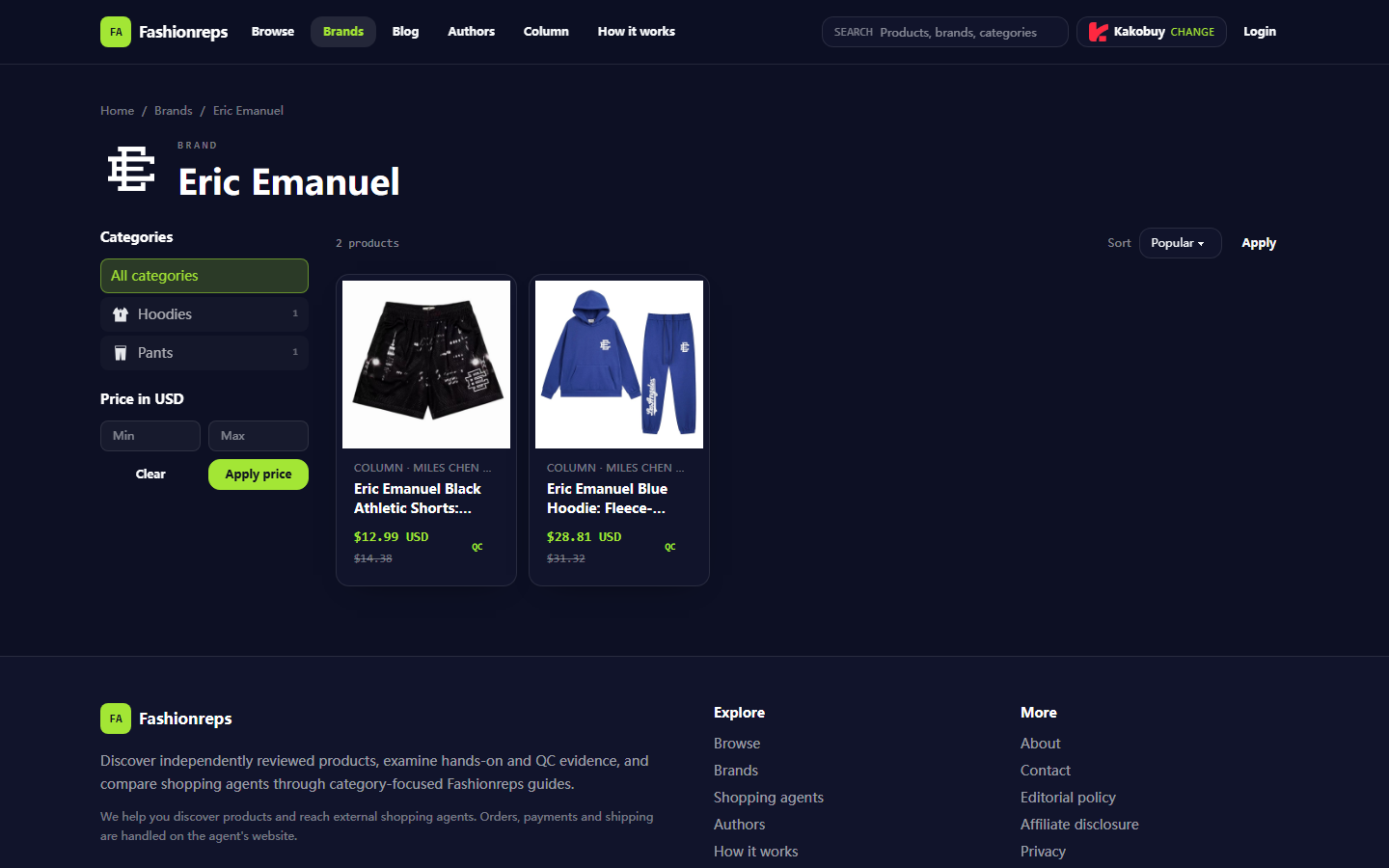
The image shows a snapshot of the Fashionreps Eric Emanuel brand catalog, displaying a blue hoodie and black athletic shorts. This only confirms that the catalog has entries for these items; it does not independently verify that a specific order's QC photos, product style, or w
Editor score 4.2 / 5

The image shows a snapshot of the Fashionreps Eric Emanuel brand catalog, displaying a blue hoodie and black athletic shorts. This only confirms that the catalog has entries for these items; it does not independently verify that a specific order's QC photos, product style, or warehouse records are correctly matched. The sole troubleshooting goal below is to confirm whether the QC link on the hoodie product detail page still points to the same style, color, and size.
Defining the Task: eric emanuel Hoodie QC Link Mismatch
Common occurrences include:
- The product detail page shows an Eric Emanuel hoodie, but clicking View QC Photos leads to shorts or another item.
- The QC page opens but has no images, no matching style, or only generic placeholder content.
- The QC page redirects to the brand catalog, shopping agent page, or login page, making it impossible to confirm if it belongs to the current order.
- The color, size, or style name of the same product differs between the product page and QC page.
This troubleshooting only addresses the correspondence among the product detail page, QC link, and QC gallery. It does not assess authenticity, fabric quality, workmanship, or seller reputation. After completing these steps, you should be able to decide whether to wait, reopen the correct link, or gather evidence to contact official support. If the issue actually lies in payment, shipping, customs, or returns, these steps do not apply.
Save Product Page, Style, Color, Size, and Page Time
Do not repeatedly click or immediately submit duplicate orders. After opening the current product detail page, record the following:
- Product name, and the brand and category shown on the page.
- Color, size, style name, or variant options.
- The full URL of the product detail page.
- The original text of the View QC Photos or similar link.
- The page URL or redirect path before and after clicking the link.
- Any visible identifiers such as product number, order number, shopping agent name.
- Screenshots and timestamp, ideally noting the destination country and account status.
In the Fashionreps brand catalog snapshot visible on October 16, 2026, the Eric Emanuel page showed two catalog items: a blue hoodie and black athletic shorts. That snapshot did not provide any user's order details, size selection, or generated QC photos, so catalog information cannot be used as evidence for a personal order. Saving this basic information prevents mistaking adjacent items or old pages for the current product.
If the page has product thumbnails, when taking screenshots, keep the product name, color, and size areas; if the screenshot includes name, phone, address, order number, or payment information, redact this personal information before sharing. Account security is more important than proving a QC image. 🔒
Checking the View QC Photos Link from the Current Product Page
Start from the current product detail page, not from search results, browser history, or adjacent items in the brand catalog. Follow these steps:
- Confirm the page title, product category, and main image still show the target hoodie.
- Record the variant selection, especially color and size.
- Find the View QC Photos, QC Photos, or similar link, and click it only once.
- Wait for the page to finish loading, then record the final URL, page title, and visible product name.
- If a new tab opens, keep the original product page open for comparison; do not close it.
- If the page asks for login, first confirm you are logged into the account used for the order; do not enter your password on an unfamiliar page.
- If the link does not respond, record the button state, page message, and time; do not repeatedly refresh.
The presence of the link alone does not mean the gallery is ready. The link might just be a frontend navigation, while the actual images are still provided by the shopping agent, warehouse system, or order service. Conversely, a temporarily missing link does not necessarily mean the product has no QC record; it could be due to page sync issues, different account status, or the product not being linked to a visible order.
Comparing Style, Color, and Visible Order Info in the QC Gallery
On the QC page, first look at the fields that can be directly confirmed; do not infer unverifiable facts from image appearance. Use the following comparison table:
| Item to Compare | What to Record from Product Page | What to Verify on QC Page | Action if Mismatch |
|---|---|---|---|
| Product Category | Hoodie, pullover, or other explicit category | Page title, tags, or order line item | Pause judgment, screenshot and keep both pages |
| Style | Product name, style number, or variant name | QC page title, order description, or product number | Do not use similar main image to confirm style |
| Color | Selected color name on page | Order field, variant field, or multi-angle images | Do not request shipping if color differs |
| Size | Size selected at order | Order details or visible size markings | Cannot confirm wrong size without size evidence |
| Associated Info | Product number or agent link visible on product page | Order number, warehouse number, or image identifier | Image filename alone is insufficient to establish correspondence |
If the QC images only show parts of the garment and you cannot confirm color, style, or size, mark the result as "insufficient evidence" rather than directly judging it as wrong item. Image angle, lighting, and compression can cause visual differences; but if the page text clearly shows another category, such as shorts instead of a hoodie, record it as a clear page correspondence issue. 🧾
Also check whether you have opened the wrong browser tab. Shopping agent pages often keep multiple product or order tabs, and QC images in old tabs may still be accessible but do not belong to the current product. The most reliable method is to re-enter from the current product page and compare the order or product identifiers after redirection.
Distinguishing Missing Link, Empty Gallery, and Redirect to Wrong Product
These three situations require different handling:
Missing Link
The product page has no QC link at all, or the link only appears for some products. First confirm:
- You are on the actual product detail page, not a brand catalog or search results page.
- You have selected a specific color and size.
- You are logged into the correct shopping agent account.
- The page indicates that this product supports QC or warehouse inspection.
- There are no regional, order status, or product type restrictions.
If the link is still missing after confirming the above, save a screenshot and timestamp; do not modify URL parameters or guess a QC page URL.
Empty Gallery or Still Loading
If the page opens but has no usable images, record the page message and order status first. One normal re-open can rule out a temporary loading issue, but repeated refreshing usually cannot generate nonexistent QC records. If the page shows "processing," "pending warehouse," or similar, rely on the order system's explicit status; do not treat an empty gallery as quality pass or fail.
Redirect to Wrong Product
If the QC page clearly shows shorts, another color, or a different order, this is closer to a verifiable correspondence issue than mere image similarity. Keep the following evidence:
- Screenshot of the original product detail page.
- Screenshots of the page before and after clicking the link.
- Visible product name, number, color, or size on both pages.
- Page URL and time.
- If order information is present, keep only the minimum fields needed for verification, and redact personal data.
Do not place duplicate orders, re-request inspection, or regenerate QC requests to "fix" the correspondence. Repeated actions may create new order records, making it harder for support to determine the original issue. ⚠️
Recording Visible Evidence and What Cannot Be Judged
A QC link issue only proves there is a correspondence to verify between pages; it cannot directly prove the following:
- The hoodie is definitely fake or authentic.
- Fabric composition, weight, or warmth matches the description.
- The garment definitely has serious flaws.
- The seller definitely shipped the wrong item.
- The shopping agent definitely lost the item.
- A particular image definitely belongs to the current order.
If the QC images are correctly matched, you can only check what the images show, such as obvious stains, damage, color deviation, print placement, or size labels. Areas not visible in the images cannot be considered inspected. For size issues, rely on measurement charts, measurement data, or official support responses provided on the page; do not estimate based on screen proportions.
It is recommended to create a brief record:
- Issue: What you saw after entering from which product page.
- Verified: Which fields match, which do not.
- Evidence: Screenshots, time, page title, and visible numbers.
- Unknowns: Content that cannot be confirmed from the page.
- Next step: Wait, re-enter from order, or contact support.
This record turns "looks wrong" into a reviewable issue and prevents writing guesses as facts. 🔎
When to Stop Refreshing and Prepare for Official Support
Stop refreshing if any of the following conditions are met:
- You have re-entered from the current product page once and still get redirected to another product.
- The QC page consistently shows blank or error status, with no new progress.
- The color, size, or product number clearly differs between product page and QC page.
- The page asks you to submit orders, payments, or account credentials through an unfamiliar third-party address.
- You need to place duplicate orders, pay again, or re-request QC to proceed.
- The page keeps redirecting to the catalog, preventing a stable order correspondence.
When preparing for official support, provide only the minimum necessary: product page URL, product name, variants, essential order or warehouse identifiers, time of occurrence, page messages, and redacted screenshots. Do not send full shipping labels, passports, payment cards, account passwords, or images with full addresses.
When contacting support, describe the problem factually, e.g., "After entering the QC link from this product detail page, the displayed product category does not match the original. The product page shows a hoodie, but the QC page shows another item; screenshots and times are attached. Please verify the binding between the order and QC record." Do not demand that they mark the product as qualified, and do not accuse the seller or platform of fraud without evidence.
Final Review Checklist After Correspondence Is Restored
After receiving a page update or official response, re-enter from the current product page and complete the final check:
- Product category is still the target hoodie.
- Style name or product number matches the original.
- Color matches the order selection.
- Size matches the order record.
- QC images or measurement info are indeed linked to the current order.
- Page does not redirect to another product or order.
- Any unconfirmed aspects are explicitly recorded, not assumed normal.
Only after the correspondence is stable, key information is consistent, and you understand the image coverage should you decide whether to proceed with warehouse processing or shipping. If any key field remains inconsistent, keep the current state and continue verifying through official channels. This prevents duplicate orders due to a mistaken redirect and provides a clear evidence chain for after-sales support.